Making Your Agent More Advanced#
The agent from Creating Your Own Agent reads text. A voice note or a photo is discarded, and nothing reaches you until the whole run finishes, which on a long tool-calling turn is half a minute of no feedback.
This guide adds voice and image input, and makes the agent reply turn by turn while it works.
What you will add#
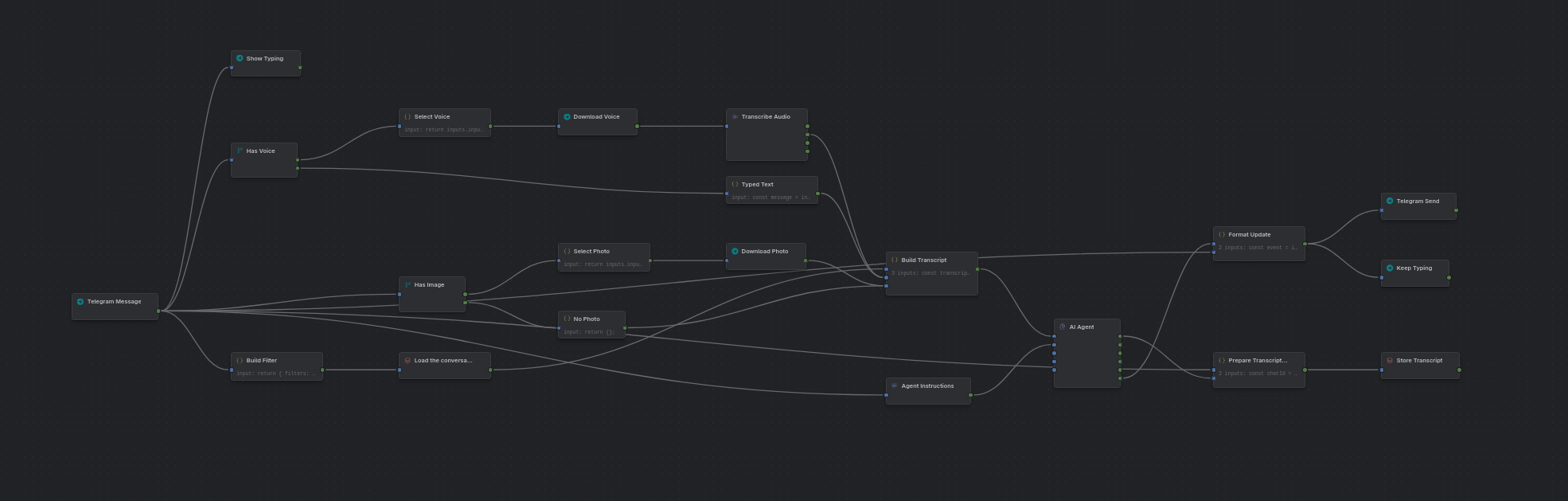
Media in Verdalia#
Media reaches a node one of two ways.
Binary is raw bytes on an edge. Telegram Download produces it, Generate Image produces
it, and a JavaScript node returning a Uint8Array produces it. Binary is not written anywhere; it
exists for as long as the run does.
A stored object is bytes in workspace storage with a row describing them. Upload Media is what creates one, and it is the only thing that does.
An object travels as a descriptor:
{
  "object_id": "01M1J7WA5JKKBXT7X0S101K38C",
  "kind": "image",
  "content_type": "image/png",
  "filename": "photo.png",
  "size_bytes": 1547713,
  "public_url": null,
  "metadata": { "type": "image", "width": 1024, "height": 1024 }
}
object_id is the identity, and the only handle anything needs. The media nodes — Read Media,
Process Image, Upload Media — take the whole descriptor, { "object_id": "..." }, or the
bare id string, so an Upload Media output wires straight into the next one. Message content on an AI
node is stricter: the descriptor, { "object_id": "..." }, or { "url": "..." }, and a bare string
is refused. Read Media turns an object back into binary.
metadata is tagged by type and carries only what applies: width and height for an image or
video, duration_ms for audio and video, page_count for a PDF.
public_url is null unless the object was stored public. Upload Media's Access field takes
private or public, and defaults to private. A public object has a URL that needs no login,
which is the one to paste into a message or hand to a service that fetches by URL. Visibility is
decided when the bytes are written, so changing it means uploading again. Retention applies to both,
and a public URL stops resolving once the object expires.
A descriptor is not a copy of the bytes. Passing it between nodes moves an id, and the bytes are read only when a node asks for them.
Integrations hand you a reference rather than content. Telegram gives you a file_id, and
Telegram Download fetches the bytes when you need them. Most integrations work the same way.
Images can be placed directly into the conversation as message content. Audio cannot: providers reject audio conversation input, and the run fails at that point rather than when you build it. A voice note is transcribed first, and the agent reads the text.
Processing voice input#
1. Find the attachment. The Telegram Message node outputs an attachments array alongside
text and caption. Each entry looks like this:
{
  "file_id": "AgACAgQAAx0...",
  "attachment_type": "voice",
  "mime_type": "audio/ogg",
  "duration": 4,
  "file_size": 8213
}
attachment_type is one of photo, video, voice, document, or audio. The entry is a
reference; the bytes are not in it.
2. Split the two cases. Add an If node, connect the Telegram Message node to it, and set the condition:
inputs.input.attachments.some(a => a.attachment_type === "voice")A voice note leaves through then, everything else through else. Only one side carries a value;
the other emits a skip naming the condition result, and every node downstream of it is skipped.
3. Pick the voice note out. Add a JavaScript node on the then branch:
return inputs.input.attachments.find(a => a.attachment_type === "voice");4. Download it. Add a Telegram Download node and connect the previous node to its
attachment socket. It has no field for a file id — the attachment object has to arrive on that
socket. Select the same connection as before. It outputs the bytes together with filename,
content_type, and size_bytes.
5. Transcribe it. Add a Transcribe Audio node and wire the download into its input
socket. Pick a connection and model in Model, the same two-part picker the AI nodes use;
OpenAI, Groq and ElevenLabs all serve transcription models. Leave language empty to detect it, or
set it if you always speak the same language and want the accuracy. Its text output is the
transcript as a plain string.
Note: a transcription that fails does not fail the run. text comes back empty and the
results output carries one record per input with the error on it, so a workflow reading only
text delivers a blank message rather than stopping. Check results if a voice note ever arrives
as silence.
6. Handle the text case. On the else branch add a JavaScript node producing the same
thing the transcript does, a plain string:
const message = inputs.input;
return message.text ?? message.caption ?? "";
A photo sent with a message puts that message in caption rather than text, which is why both
are checked.
7. Join the branches. Connect both the Transcribe Audio text socket and the JavaScript
node from step 6 to the same input socket on your message builder. Call that socket text.
This pattern comes up every time you branch. Do not use a Merge node to recombine alternatives: Merge waits for all of its inputs, and the branch that did not run never arrives, so the workflow stalls. Wire both branches to the same socket and whichever one ran supplies the value.
Processing images#
8. Add the branch. Another If node connected to the Telegram Message node:
inputs.input.attachments.some(a => a.attachment_type === "photo")On then, a JavaScript node picking the photo out:
return inputs.input.attachments.find(a => a.attachment_type === "photo");Then another Telegram Download, wired as before.
On else, a JavaScript node returning an empty object:
return {};Every socket the builder declares has to receive something, and a socket fed only by a skipped branch skips the builder with it. The empty object lets the else branch report nothing without stopping the workflow.
Connect both the Telegram Download and the empty-object node to a socket named photo on the
builder.
9. Rewrite the message builder. This replaces the JavaScript node from step 4 of the first
guide. Give it three input sockets, conversation, text, and photo. The conversation socket
stays wired to the Table node; message is gone, because the text now arrives on text from
whichever branch ran:
const transcript = inputs.conversation.length === 0 ? [] : inputs.conversation[0].transcript;
const text = inputs.text.trim();
const content = [];

if (text !== "") {
  content.push({ type: "text", text });
}

if (inputs.photo.binary) {
  content.push({
    type: "media",
    media: {
      binary: inputs.photo.binary,
      mime_type: inputs.photo.content_type,
      filename: "photo.jpg"
    }
  });
}

if (content.length === 0) {
  throw new Error("A message needs text or a photo.");
}

return [
  ...transcript,
  { kind: { type: "user_message", content } }
];
A user message is a list of content items rather than a single string, which is what lets one message carry a photo and a question about it.
A media item takes binary, as here; { object_id } for something already stored; { url } for a
picture the agent should fetch; or a whole descriptor from an Upload Media node.
Note: the bytes cross into the conversation directly, so no Upload Media node is needed.
mime_type has to be set explicitly, because binary loses its content type passing through a
JavaScript node. The image then lives in the transcript you save to the table and stays there. If
you send pictures regularly, strip images out of entries older than a day or two before feeding the
transcript back in, or the conversation row grows without limit. Storing the photo with Upload
Media and putting { object_id } in the message instead keeps the row small, at the cost of the
object having to outlive the conversation.
Sending messages while processing#
The AI Conversation node has an intermediate output socket. Rather than producing a value at
the end, it runs whatever you connect to it during the agent's run, once per event, in order. The
nodes hanging off it are a small workflow of their own, executed repeatedly while the main one is
still going.
Branch on event.kind:
assistant_message— the agent produced a piece of texttool_call— a tool is about to runtool_result— a tool finished, successfully or notresponse_finished— one model turn endedtranscript_entry_finished— an entry was appended, carried whole inevent.entrycompaction_started,compaction_finished— the run summarised its own history, which only happens with auto_compact onrun_finished— the run ended
Token-by-token streaming is not available; the smallest unit is one of the events above.
10. Format the events. Add a JavaScript node with two input sockets, intermediate and
message. Connect the AI Conversation intermediate socket to the first and the Telegram
Message node to the second.
const event = inputs.intermediate.event;
const chat_id = inputs.message.chat_id;

if (event.kind === "assistant_message") {
  return { chat_id, text: event.text };
}

if (event.kind === "tool_call") {
  return { chat_id, text: `🔎 ${event.name}` };
}

if (event.kind === "tool_result" && !event.success) {
  return { chat_id, text: `⚠️ ${event.name} failed` };
}

return skip("Nothing to report for this event");
skip(...) ends the branch, which is how most events produce no message. Returning null does not:
null is a value like any other, and Telegram Send would run with nothing to send. Successful
tool results are dropped to avoid a running commentary; failures are reported, because otherwise a
failed tool looks like the agent doing nothing.
Wiring the input node straight into a node inside the body is how you get the chat id in there. It does not route through the AI Conversation node.
11. Send them. Add a Telegram Send node after it, with Chat ID set to
{{ input.chat_id }} and Text to {{ input.text }}, as in the first guide.
Mapping tool names to readable labels — task_create to ✅ Creating a task — makes the updates
easier to follow. Start with the raw name and improve it once you see which tools your agent
reaches for.
12. Delete the final send. The reply now goes out piece by piece, so the Telegram Send node at the end of the first guide would send the whole answer again. Remove it, along with the JavaScript node that formatted the final response.
What remains after the agent is the transcript save, unchanged. The messages socket still carries
the full conversation and still gets written to the table.
Note: the reply now reaches you before the transcript is stored. If the save fails, you will have read an answer the agent has no record of.
Typing indicators#
Telegram shows "typing..." for about five seconds, or until the bot sends something, so it has to be fired more than once.
13. Add two. Add a Telegram Action node, set the operation to Send Chat Action with the
action typing, and set Chat ID to {{ input.chat_id }}. Connect the Telegram Message node
to it so it fires as soon as a message arrives, covering the time spent loading context.
Add a second one inside the intermediate body, connected to the same JavaScript node from step 10 that feeds Telegram Send. It fires whenever there is something to report, which keeps the indicator alive through a long tool-calling run.
Cost and token use#
The AI Conversation node has a metrics output socket, worth wiring up once you use the agent
daily:
{
  "model": { "provider": "anthropic", "id": "claude-sonnet-4-6" },
  "tokens": { "prompt": 15925, "completion": 412, "total": 16337 },
  "cost": { "microusd": 4210, "currency": "USD", "kind": "estimated" },
  "context": { "used": 15925, "limit": 500000 }
}
Send it to a table to see which conversations are expensive, which tools return more text than they
need to, and how close a run gets to the context limit before compaction. cost is null for models
with no published pricing, and kind says whether the number is measured or estimated.
Where to go next#
Branch, do the work, rejoin on one socket. That pattern extends the agent further on its own: documents and PDFs follow the same route as photos, video goes through Extract Audio before Transcribe Audio, and sending pictures back is Generate Image into the Telegram Send attachments field.
The agent still knows only what is in the current chat. Giving Your Agent Memory adds a workspace memory store it can recall from, and that the rest of your workspace can use too.